How to change the WordPress URL: the sequel

Almost a year ago, we showed you how to change the WordPress URL in this article.
There is now a new, much easier method, available through the WordPress Toolkit built into Plesk.
In Plesk, go to the hosting subscription concerned. On the line showing the WordPress logo and your site’s name, click “Clone”.
(If this line does not appear, you most likely installed WordPress without using Plesk, and Plesk needs to detect your WordPress instance. Please follow this link, which includes a paragraph guiding you through the process.)
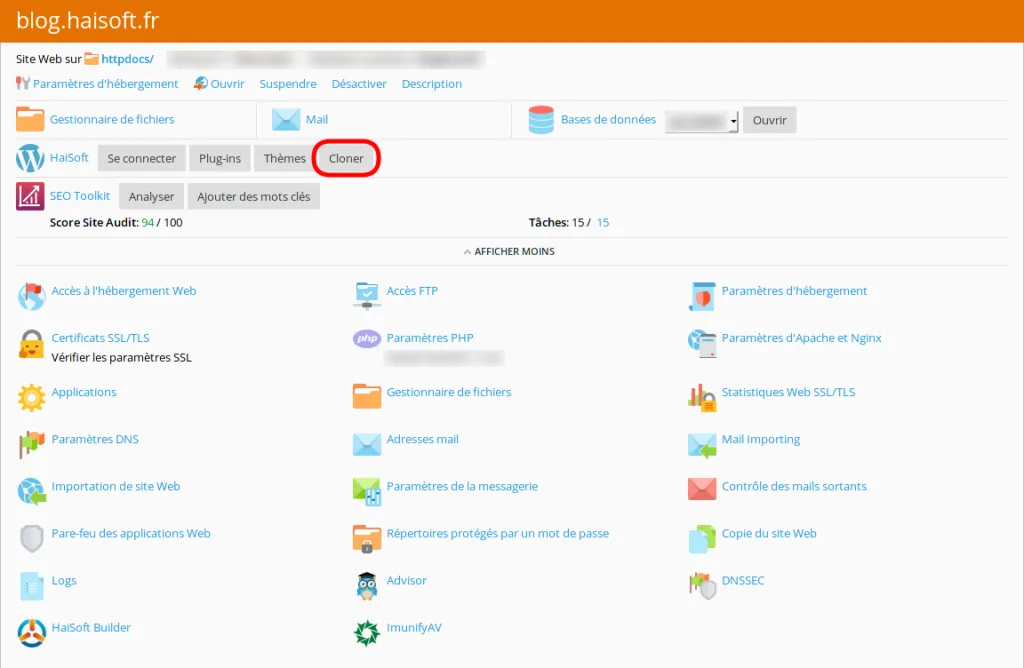
Once you have clicked this button, a new page appears, offering to clone your WordPress site:
– to a new domain/subdomain;
– to an existing domain/subdomain.
You can also choose the name of the new database.
Then click the “Start” button.
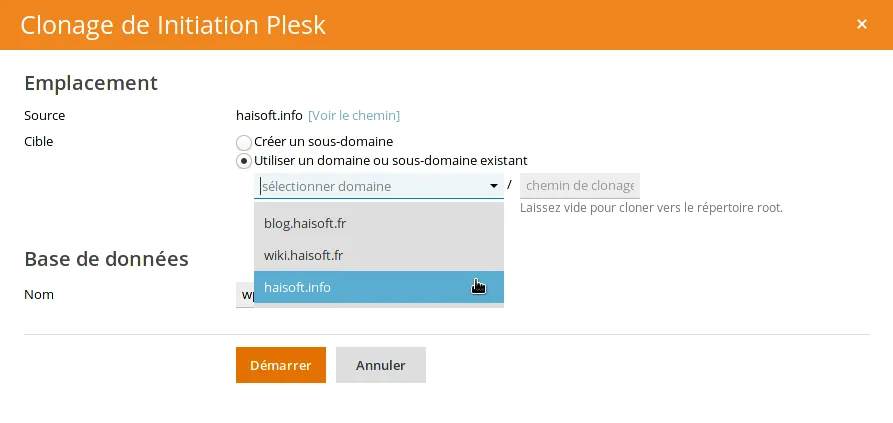
Once the cloning process is complete, delete (or deactivate) your old WordPress site, then visit your site:
if it displays correctly and all the pages are accessible, perfect!
If some elements are missing, you may need to use the Go Live Update Urls plugin (as in our previous guide) to fix this.
In the WordPress Plugins menu, click Add New, then search for the Go Live Update Urls plugin, install it and activate it.
In the Tools menu, click the newly added Go Live entry.
At the bottom of the page, fill in the Old URL and New URL fields, leave the boxes ticked as they currently are, then click the Update Urls button.
Once the operation is complete, go to your site and check that it displays correctly. You can then delete the Go Live Update Urls plugin, which is no longer needed.
Please note that, on our new plans, the WordPress Toolkit “Clone” option used to be restricted to customers who had taken out the “Advanced WordPress support” option. We have decided to unlock this feature so that everyone can clone or move a WordPress site.
That’s the end of this guide! Feel free to send us any information you think might be useful (in the comments, for example). Our technical team is available 7 days a week for any request via support ticket.