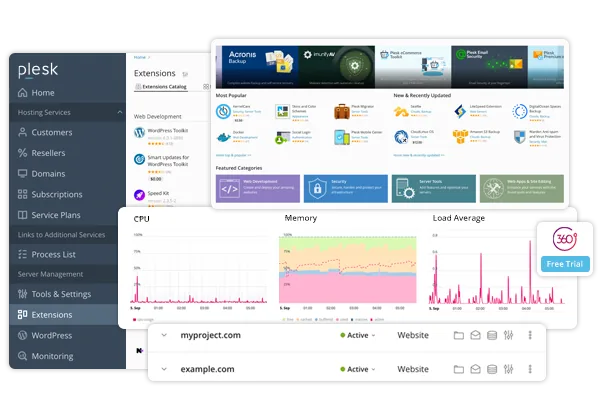
Plesk is your technical interface: the control centre of your web hosting at HaiSoft. Among other things, this web interface lets you manage your backups.
Plesk Obsidian
You will find the login link in your HaiSoft customer area, under Hosting:
Fine, but what can I do in Plesk?
With the data backup and restore features provided by Plesk, and depending on your level of access (customer, reseller, administrator, etc.), you can:
Back up the entire server.
Back up individual user accounts with their websites.
Back up individual subscriptions.
Schedule backups.
Restore data from backup archives.
You can create full backups and incremental backups (to optimise backup time and the disk space required), create password-protected backups, manage different backup levels depending on account permissions, and much more.
Here is the procedure for manually backing up one of your websites, as described by Plesk:
Creating a manual backup
To create a manual backup:
Go to Websites & Domains > Backup Manager > Back Up.
Under "Back up", you can select the type of content you want to back up. Domain configuration is always included in backups. You can exclude "Mail messages" and/or "Databases" by clearing the corresponding checkboxes.
Under "Store in", you can change where the backup is stored. By default, backups are stored on the Plesk server. If you have configured remote storage (in French), you can store your backups there by selecting the corresponding radio button.
Under "Type", choose the backup type by selecting the corresponding radio button:
A full backup includes all the data you specified in step 2.
An incremental backup only contains the files that have changed since the last backup was created. Incremental backups are faster and use less disk space than full backups. However, to restore an incremental backup, you need the corresponding full backup and all previous incremental backups. Note: if you have no backups yet, the first backup you create is a full backup. You can then choose the backup type (full or incremental) for subsequent backups. If you selected "Domain configuration" in step 2, you can only create a full backup.
If you selected remote storage in step 3, you can split the backup file into volumes. Select the "Create a multivolume backup, volume size (MB)" checkbox, then specify the volume size. This option is useful if the remote storage restricts the maximum file size.
The backup is now ready to be created. You can configure a number of other options before creating it:
Add a note about the backup being created in the "Comments" field. Comments are visible in the Plesk interface and can help you tell backups apart.
Exclude log files from the backup by selecting the "Exclude log files" checkbox. This can reduce the amount of disk space the backup uses.
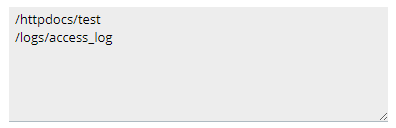
Exclude specific files or directories from the backup by selecting the "Exclude specific files from the backup" checkbox. In the field below, enter the path(s) to the directories or files you want to exclude. Paths must be relative to your home directory, for example:
To receive an e-mail notification when the backup is complete, select the "Send a notification e-mail to" checkbox for when the backup task is finished. Check that the e-mail address next to the checkbox is correct.
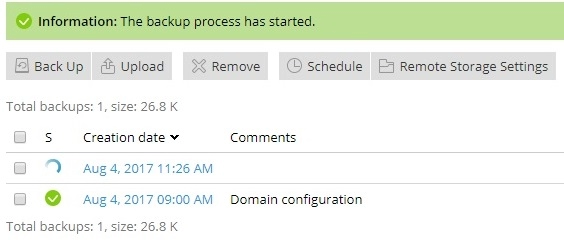
Click OK to create the backup.
You will be taken to the Websites & Domains > Backup Manager screen, where you can see the backup being created. The backup process may take more or less time, depending on the size of the content you chose to back up in step 2. Once the backup has been created, you will find it here.
By default, backups created in Plesk are also stored in Plesk, or rather on the same server as your data. In other words, the backups physically sit on the same machine, the same server, as your website files. If the machine suffers a hardware failure, these backups could therefore be lost as well, making them useless.
Bear this in mind when you use this feature: this type of backup is of limited use if you choose to store it locally on the server. Once the backups have been generated, you should either retrieve (download) them to your computer (another physical machine) or, as Plesk allows, use a remote FTP storage server (again, another physical machine).
This type of backup is also handy for one-off maintenance or updates on your website: you take a Plesk backup, run your update, and if anything goes wrong you have a fresh backup that can be restored quickly. In this specific situation, it is an effective solution.
You can accept all cookies or choose specific categories, such as statistics or marketing. Mandatory cookies are always active, as they are used for essential functions such as translation and order management. You can deactivate them by changing your browser settings, but this may affect the way the site works. For more information, please consult our legal notice.
Essential cookies
They are required for the website to work properly.
Your privacy matters to us
We only use cookies that are strictly necessary for our website to work properly. They enable essential features such as our chatbot, translation, order management and accessibility. We do not use any commercial or marketing cookies on our websites. To find out more, please see our legal notice.