E-mail: stop wasting your time
Professionals spend several hours a day on average dealing with their e-mail. What if you could spend that time on more productive tasks instead? Discover our experts' tips to radically change the way you handle e-mail.
Contents
4. Sort your e-mail automatically with Sieve filters
1. Connect using IMAP
If you read your e-mail in a webmail (a web page that displays your messages), this question does not arise. However, if you use an e-mail client (Mozilla Thunderbird, Microsoft Outlook, Apple Mail, or a POP/IMAP connection on a phone or tablet), it is essential to understand the differences between POP and IMAP (in French) as soon as you set up your mailbox. It will make your life easier and, above all, save you precious time!
To put it simply: POP is obsolete; IMAP is the right choice in 99% of cases.
TL;DR: If you don't know which one to choose, choose IMAP.
How POP wastes your time

Have you ever read an e-mail on your smartphone, only to find it still marked as unread on your PC? Or been unable to find a three-week-old message on your laptop? Or deleted or moved a message on your laptop, only to find it still on your desktop and have to do the job twice? Or found all your e-mails duplicated for no apparent reason?
In all of these cases, you were almost certainly connected using POP.
POP has only one advantage: it frees up space on your e-mail hosting. Everything else is a drawback.
The drawbacks of POP
Here are a few reasons that generally argue against using POP:
- POP does not send the "read", "unread" or "flagged" status of messages to the server, so it is not carried over from one device to another.
- Depending on your settings, messages you delete or file in your e-mail client are not necessarily deleted or filed on the server.
- Depending on your settings, older messages are deleted from the server and so cannot be viewed on a new device you connect to the mailbox.
- If you only store your e-mail via POP on your PC and that PC fails, you lose your messages unless the computer is backed up.
- You lose instant delivery of new messages.
- You can no longer ask your hosting provider to restore a message deleted by mistake.
When should you consider POP?
POP is only a reasonable option under the following conditions:
- You need to offload the contents of your mailbox from the mail server (because it is enormous and you do not have the budget to host it on a server).
- You only ever read your mailbox from a single computer.
- You have a secure, off-site backup of the computer that stores the messages (otherwise, if anything happens to that computer, you lose all your e-mail).
Generally speaking, with POP the e-mail client is out of sync with the server, which leads to complications. POP no longer matches what people expect from a modern mailbox.
The solution: IMAP
With IMAP, everything is simpler: you see your mailbox in real time, exactly as it is on the server.
So, to never have to read the same message twice, to benefit from the backups provided by your hosting provider HaiSoft and to keep all your devices perfectly in sync: always choose IMAP.

All your messages will then be stored on the server, and all your devices will stay in sync and show exactly the same content. This does mean, however, that your hosting plan needs enough storage quota for your mailbox. You may need to tidy up your mailbox, particularly messages with attachments, which take up almost all of the space.
Another advantage is data security. At HaiSoft, if you have a backup plan (included in all our new shared hosting plans, and available as an option on dedicated servers, VMs and older shared hosting plans), we can restore missing messages from an earlier backup if they are deleted by accident.
If your mailbox is connected using POP and you would like to switch to IMAP, the procedure can be tricky if you are not an IT professional. If you need help, contact HaiSoft support for advice.
2. Stop spam at the source
Sorting through unwanted e-mail is a huge waste of time.
So, can you dodge the spam bullets?
Yes, absolutely!
Not only can you prevent spam by avoiding bad habits, there are also ways to drastically limit the damage on a mailbox that is already being spammed.

Preventive measures
These are good practices to follow. Do not neglect any of them, or you risk ending up on spammers' lists.
- Never publish your main e-mail address, on your website or anywhere else on the internet. Bots all over the world will harvest it and sell it, along with thousands of others, for a few dollars to "professional" spammers. If you need to publish an address, it should be a disposable address or an alias.
- Keep an eye on the sources sending e-mail to your mailbox: every forwarder is a potential new source of spam. If necessary, remove problematic forwarders.
- If you have a contact form on your website that sends you an e-mail for every enquiry, you must set up an anti-bot system such as hCaptcha or ReCaptcha. Without one, genuine messages will be drowned among hundreds or thousands of spam messages.
- Avoid addresses that are too simple or common, such as "contact@" or "info@". Such addresses can be spammed automatically as soon as your domain appears on the internet.
- Be careful which websites you give your e-mail address to. Do not sign up with your e-mail address on websites that are careless about privacy and personal data.
- Use aliases freely. You can create as many as you need in your mailbox settings in the Plesk control panel provided by HaiSoft. We explain this in more detail later in the article.
Remedial measures
Oops, you slipped up on one of the points above. Your mailbox is already receiving spam, but all is not lost.
- You can enable a spam filter individually for each address: if SpamAssassin is installed on your server, simply go to the e-mail address settings in the Plesk control panel provided by HaiSoft.
- If the spammer can be identified by their domain or e-mail address, you can add them to a blacklist.
- You can subscribe to an advanced external spam filtering service, such as MailChannels Inbound (from €2 per domain for 20 addresses, or included with HaiSoft Mail Pro and above), AltoSpam or MailInBlack.
- Some "spam" is simply e-mail from legitimate websites you have signed up to. In that case, use the unsubscribe links at the bottom of those messages. Over time, you will receive fewer of them.
- If it really is too late and you receive far too much spam because your address is circulating on spammers' networks, you can always rename your address and keep your existing messages. This stops spam immediately. You will of course need to give your new address to your contacts and make sure you follow the preventive measures. If needed, to ease the transition, you can temporarily keep the old address as an alias of the new one; we cover aliases later in the article.
3. Use e-mail aliases
An e-mail "alias" is an alternative name for an e-mail address.
The advantage of aliases is that instead of giving out your real e-mail address (publicly, on your website, or when signing up to a dubious website), you can give out an alias of your mailbox.
For example, if your mailbox is "me@example.tld", you can create the alias "public2022".
Any e-mail sent to "public2022@example.tld" will then land directly in the "me@example.tld" mailbox.
This has two main advantages:
- Protecting your main mailbox from spam
- Making it possible to sort your e-mail automatically

A few things aliases make possible:
- Having several public names for the same address, to protect the original mailbox
- Creating an alternative name, for example for a specific event
- Deleting only the problematic alias if it starts receiving spam
- Creating a recipient for each use, so that messages can be sorted by recipient
- Temporarily keeping your mailbox's old name if you rename it
- Avoiding a forwarder that would store messages twice
- Avoiding having to log in to several mailboxes
To use aliases, you need e-mail hosting that supports them.
At HaiSoft, e-mail aliases are currently unlimited on all our e-mail plans. Each mailbox can have as many aliases as needed. Aliases are set up in the Plesk control panel, in the settings of the mailbox concerned.
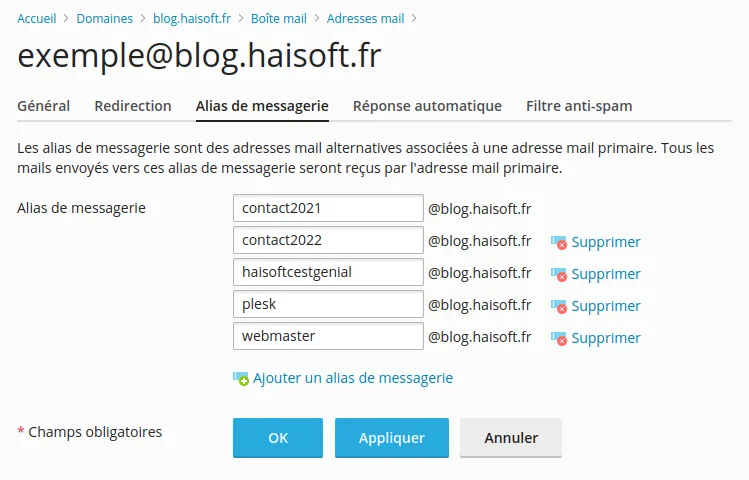
When an alias receives (too much) spam, simply delete it and set up a new one to replace it.
This will have far less impact on you than switching to a completely new mailbox.
Aliases also make it easier to sort your e-mail automatically. Let's look at how.
4. Sort your e-mail automatically with Sieve filters
Sieve is a protocol available on HaiSoft mail servers. It lets you define rules that are applied to messages as soon as they arrive. This can save an enormous amount of time, especially if you receive lots of similar messages, which can then be sorted automatically!

At HaiSoft, your Roundcube webmail (in French) lets you set up your Sieve rules through a simple, intuitive interface.
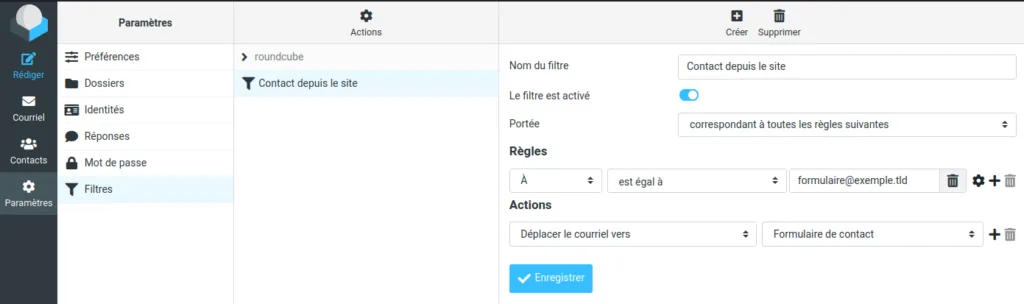
Here are some examples of conditions you can set in your filters:
- If the message comes from an address containing "@haisoft.net", move it to the "Important" folder
- If the message comes from "someshop@example.tld", move it to the "Commercial" folder and mark it as "read"
- If the message comes from "somespammer@example.tld", move it to "Spam"
- If the message is sent to my alias "github@mydomain.tld", move it to the "Github" folder and mark it as "read"
- If the message is sent to "contact2012@mydomain.tld", move it to the "ContactLegacy" folder
The excellent Thunderbird e-mail client can also sort messages according to rules, but only while the program is running, which means leaving your PC switched on if you want the filter to apply on your smartphone, for example. That is rather impractical, so we recommend using Thunderbird filters only to sort a mailbox after the fact.
We hope these tips save you up to several hours a day. If you have other techniques to add, feel free to share them in the comments.
Discover our e-mail plans on the HaiSoft website.