How to access a hosting account whose domain name is not active or points elsewhere
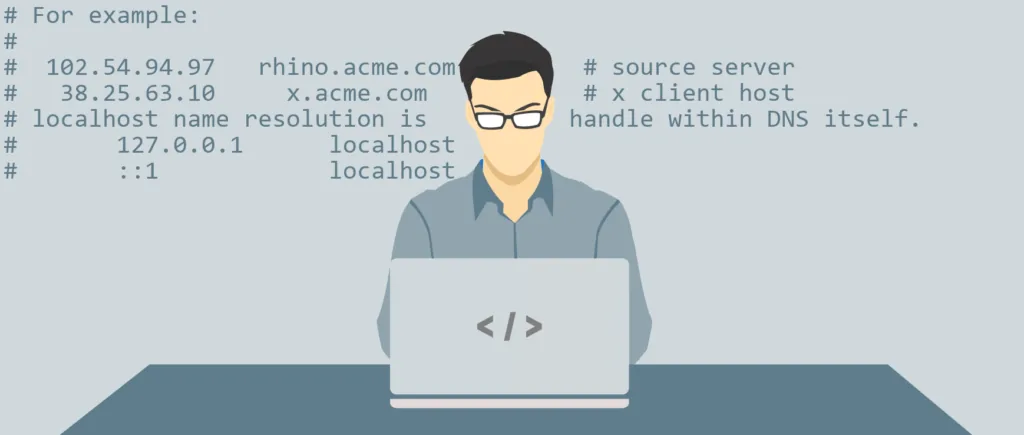
To access a website hosted on a server, you need to use a domain name. So how can you temporarily access that site if the domain name is no longer active, or if it points to another hosting service? There is a workaround, for your own machine only: editing your system's hosts file.
Editing the hosts file lets you associate an IP address with a domain name (for your computer only), without the domain actually pointing to that IP in the DNS.
1) What is the syntax of the hosts file?
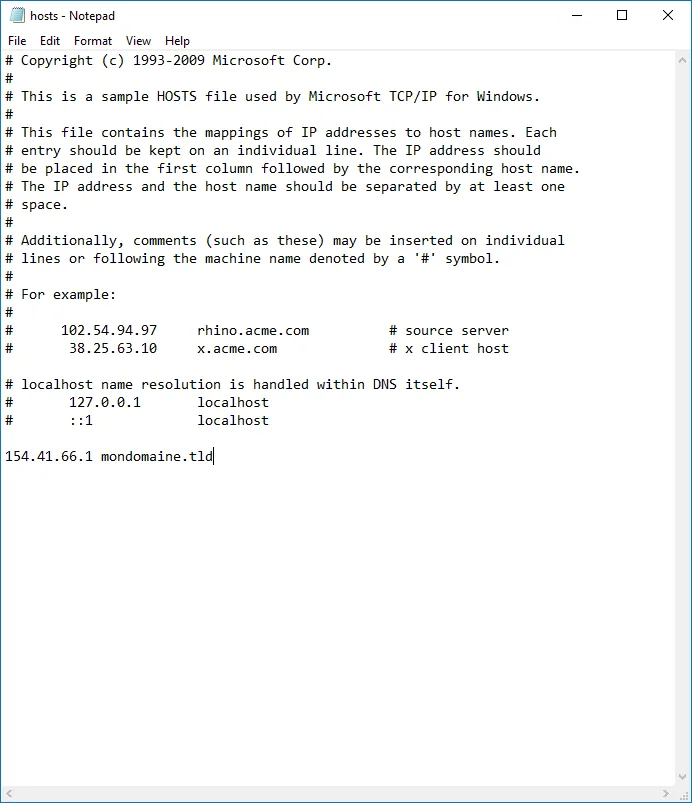
The file is made up of two columns (anything starting with a # is a comment and has no effect):
An entry in the first column is the IP address the domain will point to (for your computer only), and the entry opposite it in the second column is the domain name concerned. The two entries are separated by a space.
For example:
154.41.66.1 mondomaine.tld
2) How do I edit the hosts file?
On Windows:
Click Start, then search for Notepad. Right-click it, then click Run as administrator.
In the Notepad window, click File, Open. Go to the C:\windows\system32\drivers\etc\ folder. In the drop-down list, choose “All files” instead of “Text documents (*.txt)” so that the hosts file is displayed. Open it. Make the changes you want as explained in point 1, then save them (File, Save).
On GNU/Linux, Mac OS X and FreeBSD:
You can edit the file from the command line or through the graphical interface. Either way, you will need superuser rights.
From the command line, you can edit the hosts file with the vi editor:
sudo vi /etc/hosts
Press the i key to switch to insert mode and edit the file as needed.
Once you have made your changes, press the Esc key on your keyboard, type :wq and confirm with Enter.
Then go to the address concerned in your browser: your site should appear!
Remember that our technical team is available 7 days a week for any request via support ticket.